

NudifyAI Privacy Settings: Generate Without Leaving Traces
Can you generate content without leaving a digital trail? This question matters now more than ever. Updated guidance on March 24, 2026, shows how simple choices in each app and device shape your exposure.
You control how your account logs, what the model can keep, and which tools can access your personal content. Small changes to warning options and restrictions make a big difference.
Start by auditing every app and device that touches your files. Then apply strict security defaults and limit data sharing to only what is necessary. This reduces the chances of unintended retention or training on your material.
Key Takeaways
- Check and update your settings after March 24, 2026 guidance.
- Limit what apps and tools can access your content.
- Adjust warning preferences to reduce exposure risk.
- Secure accounts and devices with strict defaults.
- Manage restrictions to prevent model training on private material.
Understanding the Importance of AI Nude Privacy Settings
Make deliberate choices about data handling before you upload or generate anything. You deserve clear choice over how your content is processed and who can see it.
Prioritizing privacy is a modern necessity when using generative tools. Keep your content confined to the devices and services you trust. This reduces the chance of accidental exposure or misuse.
Maintaining high standards of safety lets you explore creative work without fear. Small controls — like who can access files and how long they are kept — matter more than you might think.
- Limit sharing to essential recipients.
- Use local processing when possible.
- Review logs and revoke access promptly.
| Control | Why it matters | Action |
|---|---|---|
| Access permissions | Stops unwanted viewers | Grant access only when needed |
| Retention rules | Prevents long-term exposure | Set automatic deletion windows |
| Local processing | Keeps material on your device | Use offline or device-only modes |
Managing Sensitive Content Warnings on Your Devices
Verify the guardrails on your phone and tablet so unexpected images are blocked automatically. Apple devices with iOS 17, iPadOS 17, watchOS 10, macOS Sonoma, or visionOS 2 support a Sensitive Content Warning that runs on-device.
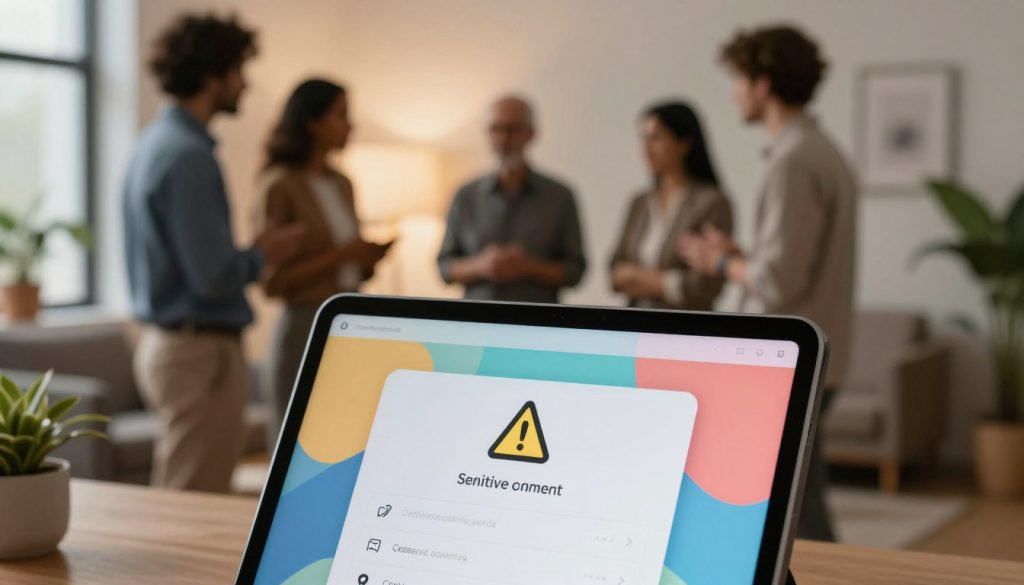
Apple Device Protections
On compatible Apple hardware, on-device machine learning scans photos and videos to detect explicit content. This gives strong privacy security because analysis stays on your device.
The Apple Vision Pro includes the same warning for Messages and AirDrop, helping keep content private across apps.
Configuring System Settings
Open Privacy & Security to enable the warning and related controls. Turn on Communication Safety to shield your child’s account from sensitive images.
- Select the Alert button in supported apps to access help or block a sender.
- Report a sender to Apple if you see inappropriate content in iMessage or FaceTime.
- Enable the setting so supported apps monitor content and keep your device secure.
Tip: Keep your account and device software current so warnings and protections work as intended.
Navigating Content Restrictions in AI Applications
Content filters sit between your request and the model’s output, shaping what you will see.
Understanding Content Filters and Triggers
Filters detect risky content and may stop a response before it appears. This keeps platforms aligned with safety goals and legal duties.
Microsoft-hosted tools such as Copilot, Designer, and Bing Image Creator enforce strict restrictions. Expect rigid controls rather than a simple switch to bypass them.
ChatGPT-style models are not promoted for NSFW generation, so prompts that match sensitive patterns often trigger a warning. When that happens, the model will decline or offer a safer answer.
- If a tool blocks a request, it usually prioritizes user safety over creative freedom.
- Devices and apps may add extra filters, so your device can enforce platform rules too.
- Learn how each model flags content so you can rephrase prompts to stay within limits.
| Tool | Typical Restrictions | User Controls |
|---|---|---|
| Copilot | Blocks explicit or harmful prompts | Report responses; follow corporate policy |
| Designer | Prevents disallowed imagery and text | Use safe templates and filters |
| Bing Image Creator | Rejects NSFW generation and flagged queries | Adjust search terms; respect tool limits |
Tip: Understanding how models work helps you manage privacy and stay inside intended safety lines while using creative tools.
Protecting Your Data Through Local Model Usage
Using local models puts data handling inside your home network and under your control. This reduces the number of external services that touch your files. It is a practical way to guard your work from unwanted tracking.
Benefits of Offline Processing
Keep content on your device. Running models locally means inputs and outputs never go to cloud servers. That lowers exposure and increases data sovereignty for your account.
You also avoid some platform warnings and external filters, so creative work can proceed without interruptions from remote tools.
Hardware Requirements
Local models need capable hardware. Expect a modern CPU, enough RAM, and a GPU for heavier tasks. Smaller models can run on midrange laptops for testing.
Consider storage and backup strategies so your device remains secure and reliable for continued use at home.
Maintaining Data Sovereignty
Control who accesses your device and which apps can run models. Use account-level safeguards, full-disk encryption, and strong passwords to protect files.
- Keep software updated to maintain security.
- Limit installation of unknown tools that may log activity.
- Use local user accounts for child devices to manage safety.
| Need | Typical Spec | Benefit |
|---|---|---|
| CPU | Quad-core or better | Fast preprocessing |
| RAM | 16 GB+ | Stable multitasking |
| GPU | 4 GB VRAM+ | Faster model runs |
Balancing Creative Freedom with Safety Protocols
Designing an experience that fosters bold ideas while enforcing guardrails takes careful trade-offs. You want expressive outputs, but developers must protect the wider community.
When you see a content warning, it usually means the platform applied its safety restrictions to avoid harm. That block is a deliberate enforcement step, not a random error.
Some users suggest a simple switch to unlock mature material for consenting adults. In practice, a lone switch can be risky unless the app pairs it with identity checks and robust audit trails.
As more apps embed powerful models, maintaining sensible restrictions while supporting creativity becomes harder. The best protocols protect people yet allow diverse artistic ideas to thrive.
Tip: Learn how each tool enforces limits so you can work around false positives and keep your creative flow without compromising safety.
Conclusion
Good control starts with one simple habit: review who can access your content today. Take a moment to check your account and device controls. Small changes to an app or system control can stop unwanted access.
Whether you use cloud tools like Copilot or run models at home, set clear options for content and warnings. Configure the button, the switch, and the specific setting that governs sharing. That choice protects your work and supports child safety.
If you need an answer, consult the official documentation for your model and tools. Follow those steps to keep your security tight and to work without leaving traces.